
Order of the Sinking Star's Steam version lists Full Controller Support, with Xbox and PlayStation controllers named in the support information. Steam Deck compatibility is marked Verified. Those listings confirm controller support; they do not guarantee that every third-party gamepad model or configuration will work without a problem.
If your controller does not respond, first check whether it is detected before changing the button layout. If it responds twice to one press, treat that as a duplicate-input symptom. A silent controller and a doubled command are different problems, even though both prevent precise puzzle movement.
Supported Controller Categories
| Category | Confirmed information | Practical boundary |
|---|---|---|
| Xbox controllers on Steam | Listed under Full Controller Support | No individual third-party model guarantee |
| PlayStation controllers on Steam | Listed under Full Controller Support | Check which edition you are using for device-specific features |
| Steam Deck | Compatibility marked Verified | Not a frame-rate or battery-life guarantee |
| Other gamepads | Exact model needs a separate check | Record model, connection method, and active configuration |
An Xbox controller listing does not mean there is an Xbox console release. In this context, Xbox describes an input device used with the Steam game. Keep the controller category separate from the platform on which the game runs.
PlayStation 5 Controller Features
The PS5 product information lists vibration support for the DualSense wireless controller. It also lists offline play and one player. These are details of the PS5 edition; they should not be extended automatically to a PlayStation controller attached to a Windows PC.
Recognize the Xbox-Layout Commands
For a quick response check on the documented Xbox layout, movement uses the left stick or D-pad, Undo is Y, the primary action is X, and character switching is B. The View button is Restart, while the Menu button opens the menu.
These command names give you a minimal set to check before working through a full configuration. Test a menu response, a movement in clear space, and the selected character. If those respond consistently, the controller is sending useful input to the game. If one command repeats or invokes the wrong action, note that specific difference.
Keep stick movement and stick pressing separate during the check. Pressing the left stick invokes Overhead View, and pressing the right stick invokes Local Area View. Moving the right stick is the Character Select command. Accidentally clicking a stick while moving it can create an unexpected view change without proving that the controller is disconnected or sending doubled movement.
Perform a Small Input Check
Before starting a complicated puzzle attempt, test three basic behaviors: menu navigation, one-step movement, and one action with a valid target. Choose a clear location where a movement's result is easy to see.
- Confirm that the controller responds to a menu command.
- Enter a familiar area and make one short directional input.
- Release the direction and observe whether the movement stops where expected.
- Confirm the selected character before testing an action.
- Compare the displayed controller prompts with the buttons you are pressing.
If movement works but a particular action does not, inspect the target and character first. The game uses heroes with complementary abilities, and an input cannot produce an unavailable interaction. A failure limited to one object may be a puzzle condition rather than a disconnected controller.
Diagnose a Controller That Does Not Respond
Start with the earliest point at which the input fails. If the controller is not detected by the system or Steam, establish that connection before examining in-game actions. If it is detected outside the game but produces no response inside, record that distinction.
Do not assume success in another game proves that this game receives the same input path. It is useful comparison information, but different games can behave differently with a particular device. Include both observations when describing the problem.
Check the exact controller model, connection method, and active configuration. If your device exposes several operating modes, identify the one currently selected using the device's own instructions. Do not switch modes blindly and then assume an unrelated mapping table describes the new mode.
Recognize Duplicate Inputs
Duplicate inputs can look like one short directional press moving two grid spaces. Another clear symptom is a menu command leaving a screen and immediately returning during the same press. Those examples identify repeated command behavior rather than merely uncomfortable movement speed.
Launch-day players reported both symptoms, with one report naming a Razer Raion. That does not prove every gamepad repeats inputs or establish that the issue remains unchanged in every later build. It does show why support and correct behavior on a particular setup must be assessed separately.
Test a brief press in open space, then compare the menu behavior. Do not use a complex puzzle interaction as the only test: a character's ability can move something unexpectedly without the controller duplicating the command.
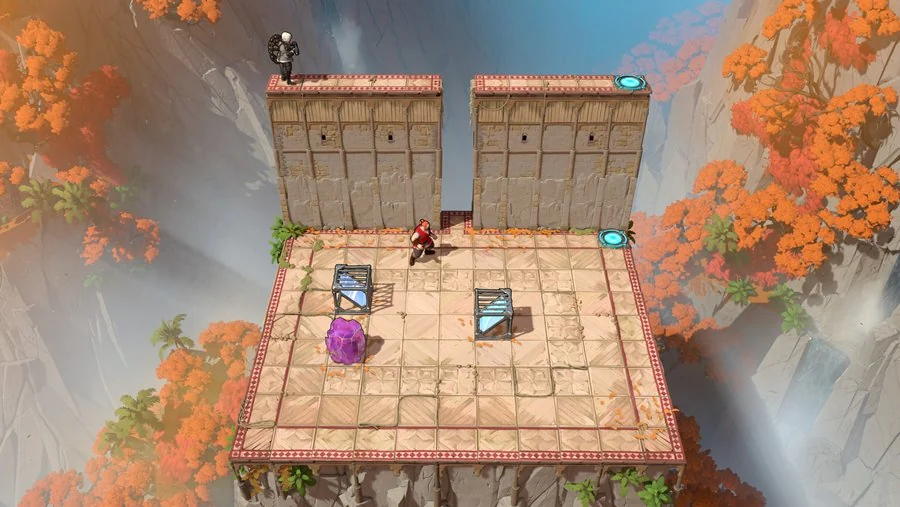
Use an open neighboring tile for a short movement check. This is a gameplay reference, not a controller settings screen.
If repetition appears only after holding a direction, shorten the input and compare again. If it happens from an isolated press in both gameplay and menus, record that exact pattern. The stronger report is “one short press repeats in these two places,” not “the controls feel wrong.”
Change One Configuration Layer at a Time
Controller setups can include device software, a platform configuration, and the game's own displayed controls. Avoid changing all of them at once while investigating a single symptom. Record the initial setup, change one setting that is actually available, and repeat the same test.
If a change improves the result, confirm it using the same menu and movement checks. If it does not, restore the previous configuration before trying another change. Keeping a baseline prevents the investigation from accumulating mappings whose combined behavior you can no longer explain.
Understand the Steam Deck Listing
Steam Deck is marked Verified for the Steam game. Treat that as a compatibility classification, not an exact prediction about your preferred graphics settings, battery use, frame rate, or external controller.
Use the built-in controls and current prompts as your starting point. If you connect another controller, check that device separately; the handheld's compatibility listing is not a model-specific certification for the accessory you attach.
Record Enough Detail for an Unresolved Issue
When your controller remains unreliable, retain a compact description of the setup and the symptom:
- Full game or demo.
- Controller brand and exact model.
- Wired or wireless connection.
- Whether the system and Steam detect the controller.
- Whether the game responds in menus.
- Whether one short press produces one command or repeats.
- The active layout and the configuration change already tested.