The PC keyboard layout uses W, A, S, and D for movement, Z for undo, R for restart, and X for the primary action. C or the number keys 1–9 switch characters. Tab opens the overhead view, Q opens the local area view, and Space is the level-preview command. Check the bindings shown in your installation if you have changed them or if its layout differs.
These commands cover several different tasks. Directional movement changes position, action keys invoke the selected character's available actions, and view keys help inspect the surroundings. Learning those groups separately is easier than memorizing one long list and discovering the difference while an object is already in the wrong place.
PC Keyboard Binding Reference
| Command | Keyboard binding |
|---|---|
| Move up | W |
| Move down | S |
| Move left | A |
| Move right | D |
| Run | Shift |
| Speed up time | Alt |
| Run and slow time | Ctrl |
| Restart | R |
| Undo | Z |
| Primary action | X |
| Switch characters | C or 1–9 |
| Secondary action | V |
| Niche action | E |
| Overhead view | Tab |
| Local area view | Q |
| Level preview | Space |
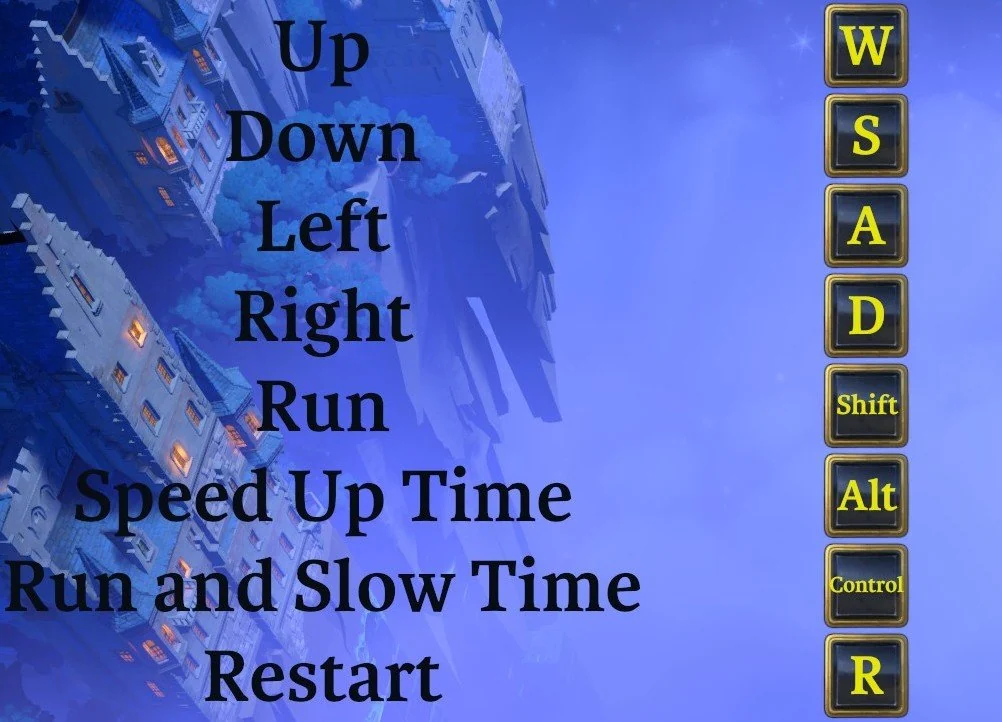
The reference shows movement, time-modifier, and restart keys. It is not an in-game settings menu.
If you have previously rebound a command, the game's displayed binding is the one to use. Do not keep pressing the original key while judging whether a mechanic works. First confirm the command name and current binding, then test the action in a situation where its result is easy to recognize.
Learn Movement with Single Directional Inputs
Movement is organized around a grid. Start with one directional key at a time and observe the result of a short press before holding a key through several positions. This is particularly useful near movable objects, where an extra movement can change the arrangement you are trying to study.
Use a clear space to check the four directions. Press W, release it, and watch the move finish. Repeat with S, A, and D. The goal is to establish that the input you intended matches the movement you see. You do not need to push a critical object or enter a dangerous position to perform this check.
When a move does not occur, compare the intended destination with the current character's situation. A wall, occupied space, or character-specific restriction can prevent a legal move. Repeating the key faster will not create a valid destination. If ordinary movement works in clear space but fails at one object, examine the puzzle rather than immediately changing your keyboard setup.
Avoid testing two held directions at once when you are trying to identify a one-step input. A combined input makes the result harder to interpret: you no longer know whether the unexpected path came from overlap, a repeated command, or the room's arrangement. Release the previous direction before testing the next.
Keep Action Keys Separate from Walking
X is the primary action, V is the secondary action, and E is the niche action. These are command categories. The binding list does not mean that every selected character can perform the same action on every object or that each category is available in every room.
Use the game's current prompts and the selected character to determine which action applies. If you are standing in front of an object and pressing a key produces no useful result, identify the active character before interpreting that as an input failure. The game's heroes have complementary abilities, so an action that makes sense for one hero may not solve the same situation for another.
Recognize the Character-Switch Commands
C and the number keys 1–9 are character-switch inputs. Keep them near the action commands in your mental layout so you remember to check the active hero before using X, V, or E.
The reference does not establish a universal number-to-character roster for every room. A number key should not be described as “always the warrior” or “always the wizard” without checking the selection shown by the game. The available characters and the order you encounter them can matter more than the number printed on your keyboard.
When learning a room's controls, switch once and look for the selected character before moving. If you rapidly cycle and immediately issue a direction, you can lose track of who received the command. A brief selection check saves you from misdiagnosing a character's different behavior as an inconsistent movement key.
Use Time Commands Deliberately
Shift is Run, Alt is Speed Up Time, and Ctrl is Run and Slow Time. They are separate entries in the layout, so do not treat every timing-related key as a general movement-speed toggle.
Start learning a new room without these modifiers. Establish where one ordinary movement takes you, then test the modifier you actually need. If an interaction depends on timing, changing the relevant time behavior deliberately is easier to understand than holding several modifiers while trying to decipher the rule.
Keep the distinction between moving faster and observing a timed interaction clearer in your notes. “Run” describes one command; “Run and Slow Time” describes another. Writing only “speed button” makes it easy to choose the wrong input when you return to a timing puzzle.
Use View Commands to Inspect Before Moving
Tab opens the overhead view, Q opens the local area view, and Space invokes Level Preview. These are useful inspection commands when you want to see a broader layout or examine a challenge before committing to a sequence of movements.
Try each command in a familiar area and watch which view changes. Once you recognize the result, you can choose the view for the task: a broader perspective for locating a destination, a local perspective for inspecting nearby routes, or a level preview when the game makes one available.
A view command does not solve the route it reveals. If an island, passage, or entrance becomes visible, you still need to determine a legal way to reach it. Use the broader view to identify the destination, then return attention to the spaces and objects that control access.
Check Undo and Restart Before a Long Attempt
Z is Undo and R is Restart. Their separation on the keyboard is useful because they serve different scales of correction. Learn which is which before you build a long arrangement that you want to preserve.
Use an inconsequential movement to check Undo, then compare the resulting position. Keep that test small enough that you can see exactly what changed. The aim is to make the command familiar without relying on a guessed keyboard shortcut when a complicated attempt goes wrong.
Restart is a broader reset command. The binding reference does not define the reset destination of every room or how checkpoints change it. Do not press R merely to find out which key corrects one mistaken move. Identify the function first, then use it when a reset is the action you intend.
If you change bindings, repeat this recognition check afterward. A habit learned on Z or R can outlast a new configuration, and the cost of pressing the wrong correction command increases as the puzzle arrangement becomes more involved.
Diagnose a Key That Appears Not to Work
Use a short sequence of checks instead of changing several settings at once:
- Confirm that the game is receiving ordinary movement in a clear space.
- Find the command's current binding in the interface.
- Release other held directional or modifier keys.
- Confirm the intended character is selected.
- Check whether the action has a valid target in this room.
- Test one input and inspect the result before repeating it.
There is no verified mouse-control layout or complete release-version rebinding procedure in this reference. Use the options your installation actually exposes rather than assuming that a request for mouse support or a demo-era remark describes the current full game's menu. The binding table gives you the documented PC commands; the game's displayed configuration tells you whether your own setup still matches them.